Dropdowns Inside Scrollable Containers: Why They Break And How To Fix Them Properly

The scenario is almost always the same, which is a data table inside a scrollable container. Every row has an action menu, a small dropdown with some options, like Edit, Duplicate, and Delete. You build it, it seems to work perfectly in isolation, and then someone puts it inside that scrollable div and things fall apart. I’ve seen this exact bug in three different codebases: the container, the stack, and the framework, all different. The bug, though, is totally identical.
The dropdown gets clipped at the container’s edge. Or it shows up behind content that should logically be below it. Or it works fine until the user scrolls, and then it drifts.
You reach for z-index: 9999. Sometimes it helps, but other times it does absolutely nothing. That inconsistency is the first clue that something deeper is happening.
The reason it keeps coming back is that three separate browser systems are involved, and most developers understand each one on its own but never think about what happens when all three collide: overflow, stacking contexts, and containing blocks.
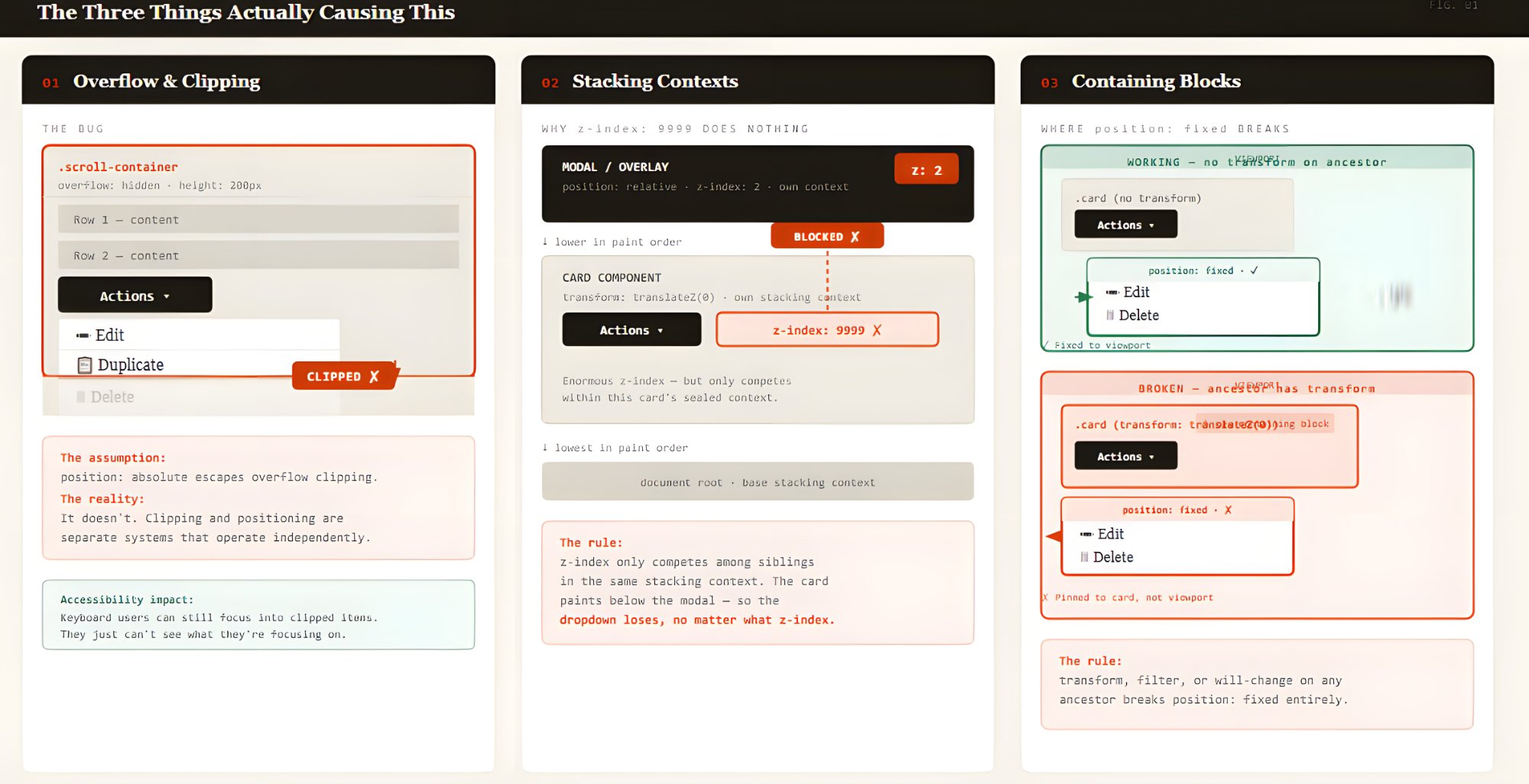
Once you understand how all three interact, the failure modes stop feeling random. In fact, they become predictable.
The Three Things Actually Causing ThisLet’s look at each of those items in detail.
The Overflow Problem
When you set overflow: hidden, overflow: scroll, or overflow: auto on an element, the browser will clip anything that extends beyond its bounds, including absolutely positioned descendants.
.scroll-container {
  overflow: auto;
  height: 300px;
  /* This will clip the dropdown, full stop */
}

.dropdown {
  position: absolute;
  /* Doesn't matter -- still clipped by .scroll-container */
}
That surprised me the first time I ran into it. I’d assumed position: absolute would let an element escape a container’s clipping. It doesn’t.
In practice, that means an absolutely positioned menu can be cut off by any ancestor that has a non-visible overflow value, even if that ancestor isn’t the menu’s containing block. Clipping and positioning are separate systems. They just happen to collide in ways that look completely random until you understand both.
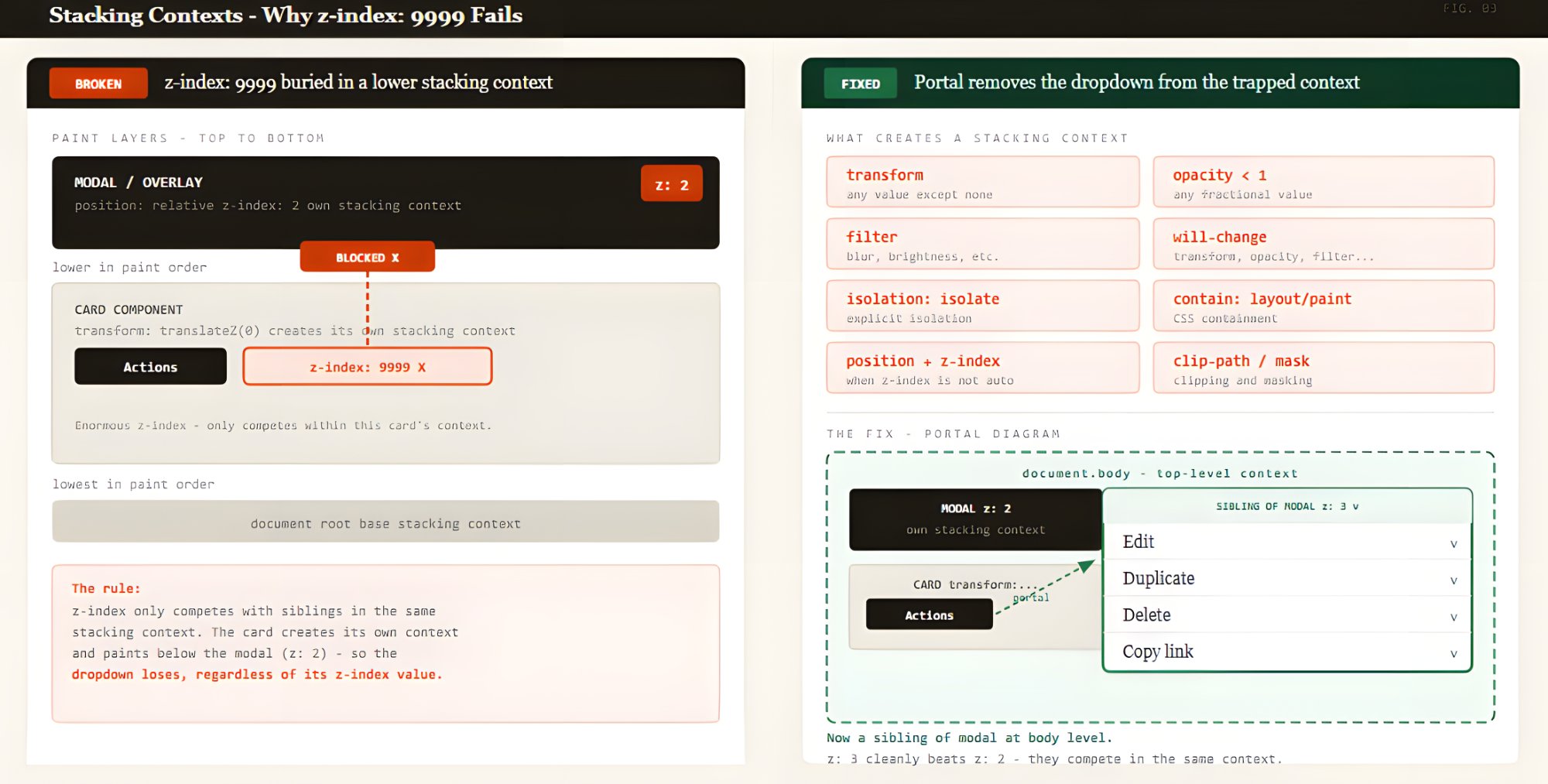
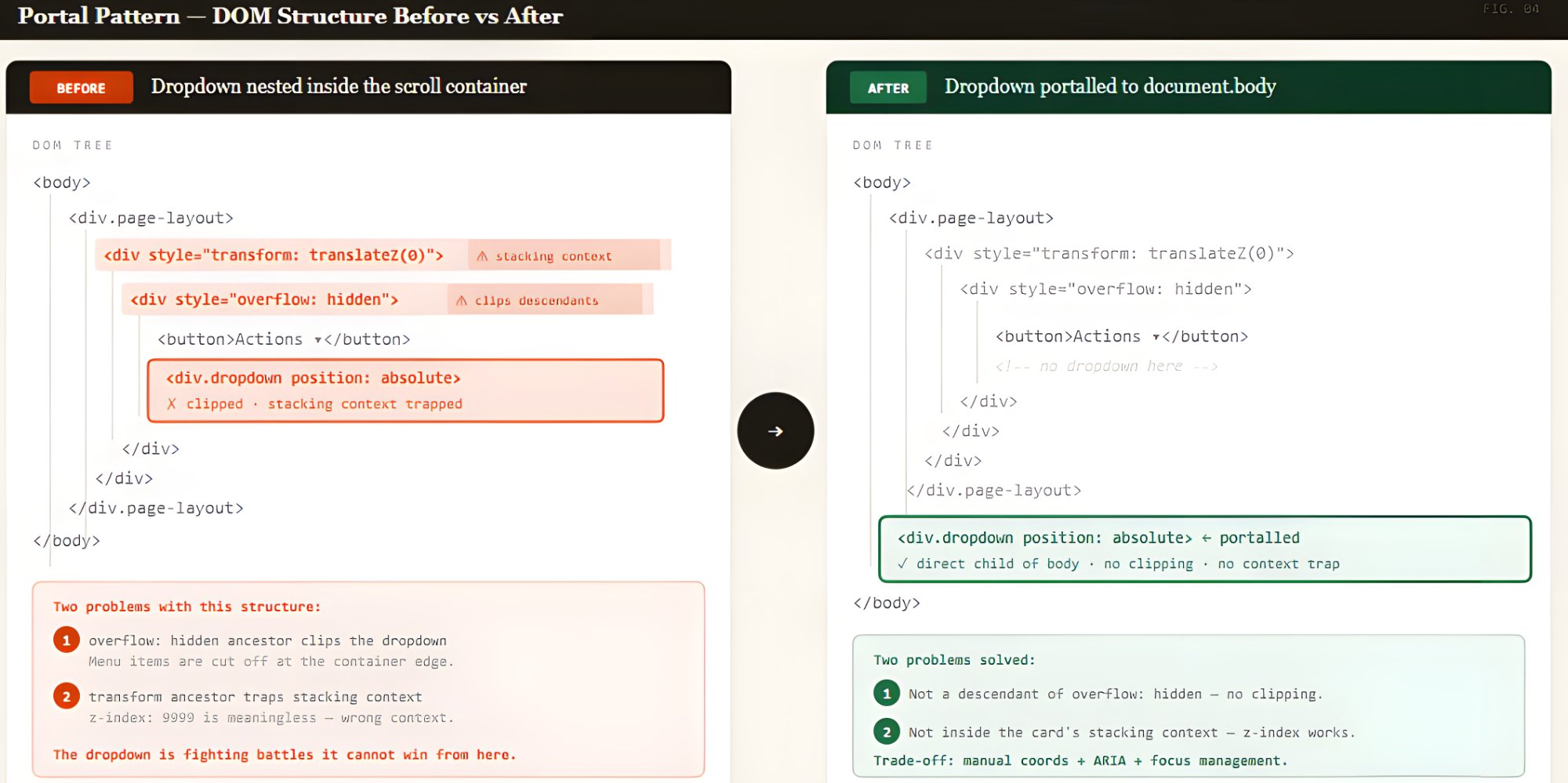
Here’s a React example using createPortal:
import { createPortal } from 'react-dom';
import { useState, useEffect, useRef } from 'react';

function Dropdown({ anchorRef, isOpen, children }) {
  const [position, setPosition] = useState({ top: 0, left: 0 });

  useEffect(() => {
    if (isOpen && anchorRef.current) {
      const rect = anchorRef.current.getBoundingClientRect();
      setPosition({
        top: rect.bottom + window.scrollY,
        left: rect.left + window.scrollX,
      });
    }
  }, [isOpen, anchorRef]);

  if (!isOpen) return null;

  return createPortal(
    <div
      id="dropdown-demo"
      role="menu"
      className="dropdown-menu"
      style={{ position: 'absolute', top: position.top, left: position.left }}
    >
      {children}
    </div>,
    document.body
  );
}
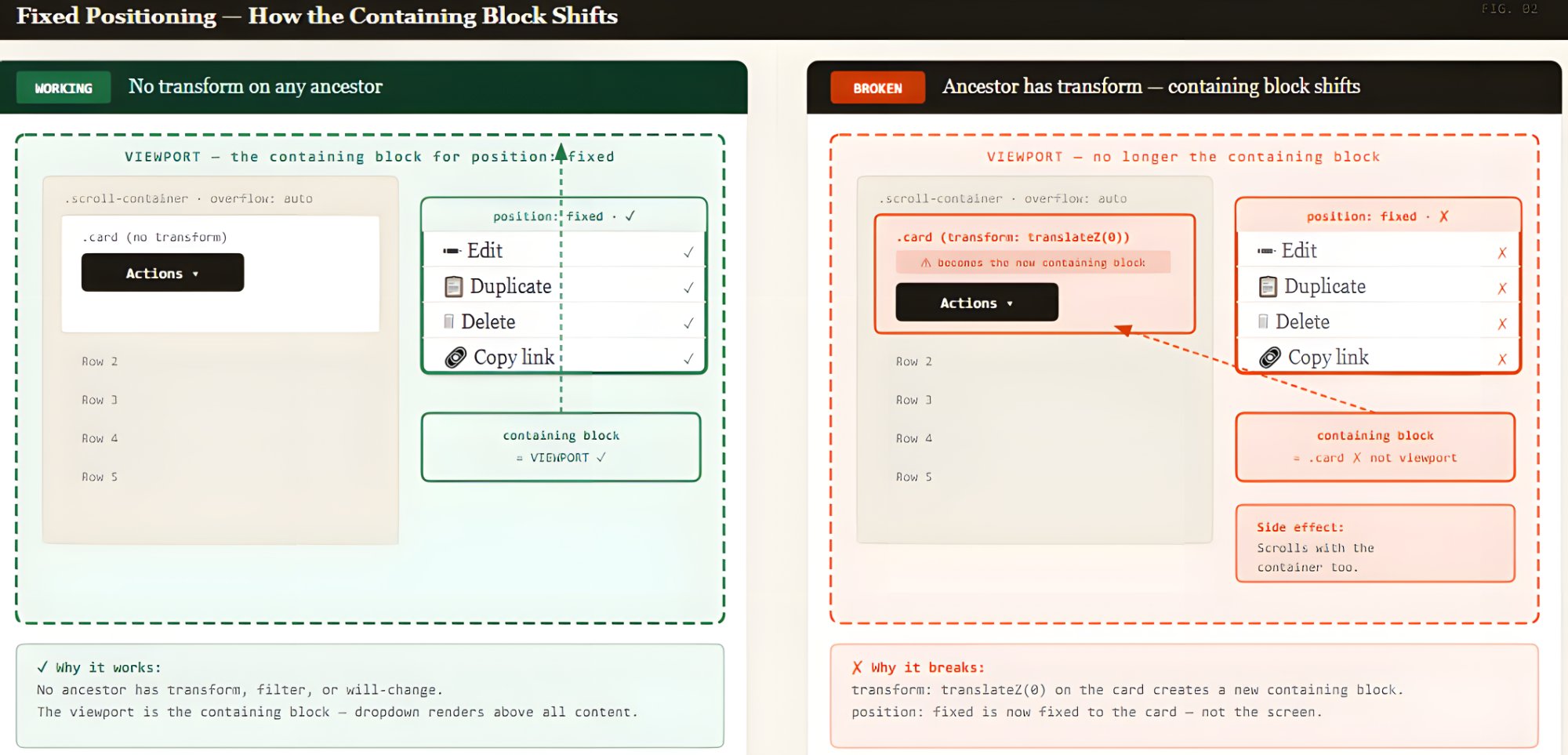
And, of course, we can’t ignore accessibility. Fixed elements that appear over content must still be keyboard-reachable. If the focus order doesn’t naturally move into the fixed dropdown, you’ll need to manage it using code. It’s also worth checking that it doesn’t sit over other interactive content with no way to dismiss it. That one bites you in keyboard testing.
CSS Anchor Positioning: Where I Think This Is Heading
CSS Anchor Positioning is the direction I’m most interested in right now. I wasn’t sure how much of the spec was actually usable when I first looked at it. It lets you declare the relationship between a dropdown and its trigger directly in CSS, and the browser handles the coordinates.
.trigger {
  anchor-name: --my-trigger;
}

.dropdown-menu {
  position: absolute;
  position-anchor: --my-trigger;
  top: anchor(bottom);
  left: anchor(left);
  position-try-fallbacks: flip-block, flip-inline;
}
The position-try-fallbacks property is what makes this worth using over a manual calculation. The browser tries alternative placements before giving up, so a dropdown at the bottom of the viewport automatically flips upward instead of getting cut off.
Browser support is solid in Chromium-based browsers and growing in Safari. Firefox needs a polyfill. The @oddbird/css-anchor-positioning package covers the core spec. I’ve hit layout edge cases with it that required fallbacks I didn’t anticipate, so treat it as a progressive enhancement or pair it with a JavaScript fallback for Firefox.
In short, promising but not universal yet. Test in your target browsers.
And as far as accessibility is concerned, declaring a visual relationship in CSS doesn’t tell the accessibility tree anything. aria-controls, aria-expanded, aria-haspopup — that part is still on you.
Sometimes The Fix Is Just Moving The Element
Before reaching for a portal or making coordinate calculations, I always ask one question first: Does this dropdown actually need to live inside the scroll container?
If it doesn’t, moving the markup to a higher-level wrapper eliminates the problem entirely, with no JavaScript and no coordinate calculations.
This isn’t always possible. If the button and dropdown are encapsulated in the same component, moving one without the other means rethinking the whole API. But when you can do it, there’s nothing to debug. The problem just doesn’t exist.
What Modern CSS Still Doesn’t SolveCSS has come a long way here, but there are still places it lets you down.
The position: fixed and transform issues are still there. It’s in the spec intentionally, which means no CSS workaround exists. If you’re using an animation library that wraps your layout in a transformed element, you’re back to needing portals or anchor positioning.
CSS Anchor Positioning is promising, but new. As mentioned earlier, Firefox still needs a polyfill at the time I’m writing this. I’ve hit layout edge cases with it that required fallbacks I didn’t anticipate. If you need consistent behavior across all browsers today, you’re still reaching for JavaScript for the tricky parts.
The addition I’ve actually changed my workflow for is the HTML Popover API, now available in all modern browsers. Elements with the popover attribute render in the browser’s top layer, above everything, with no JavaScript positioning needed.
<button popovertarget="dropdown-demo">Open</button>
<div id="dropdown-demo" popover="manual" role="menu">Popover content</div>
Escape handling, dismiss-on-click-outside, and solid accessibility semantics come free for things like tooltips, disclosure widgets, and simple overlays. It’s the first tool I reach for now.
That said, it doesn’t solve positioning. It solves layering. You still need anchor positioning or JavaScript to align a popover to its trigger. The Popover API handles the layering. Anchor positioning handles the placement. Used together, they cover most of what you’d previously reach for a library to do.
A Decision Guide For Your SituationAfter going through all of this the hard way, here’s how I actually think about the choice now.
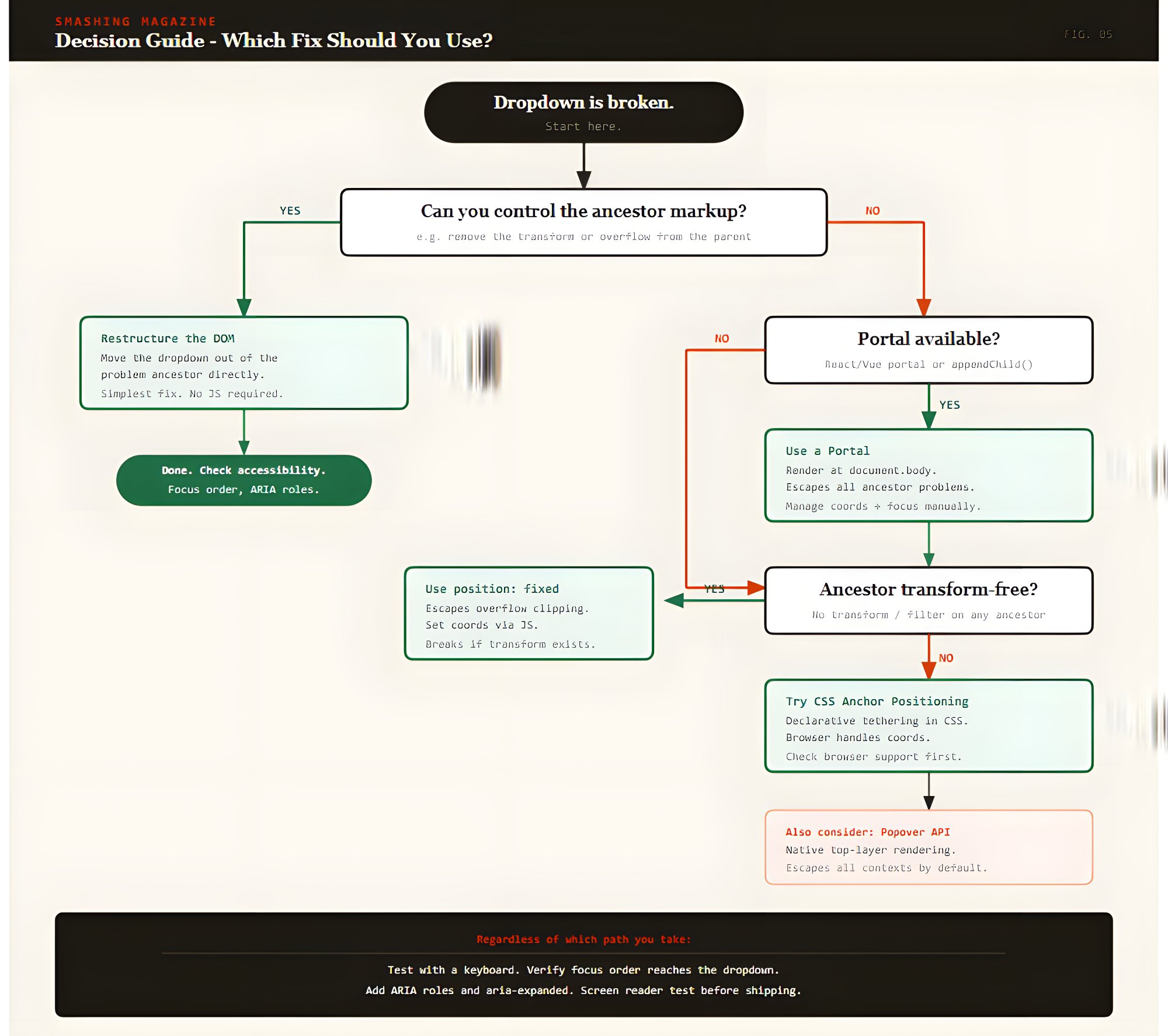
- Use a portal.
I’d use this when the trigger lives deep in nested scroll containers. I used this pattern for table action menus and paired it with focus restoration and accessibility checks. It’s the most reliable option, but budget time for the extra wiring. - Use fixed positioning.
This is for when you’re in vanilla JavaScript or a lightweight framework and can verify no ancestor applies transforms or filters. It’s simple to set up and simple to debug, as long as that one constraint holds. - Use CSS Anchor Positioning.
Reach for this when your browser support allows it. If Firefox support is required, pair it with the@oddbirdpolyfill. This is where the platform is ultimately heading and will eventually become your go-to approach. - Restructure the DOM.
Use this when the architecture permits it, and you want zero runtime complexity. I believe it’s likely the most underrated option. - Combine patterns.
Do this when you want anchor positioning as your primary approach, paired with a JavaScript fallback for unsupported browsers. Or a portal for DOM placement paired withgetBoundingClientRect()for coordinate accuracy.
I used to treat this bug as a one-off issue — something to patch and move on from. But once I sat with it long enough to understand all three systems involved — overflow clipping, stacking contexts, and containing blocks — it stopped feeling random. I could look at a broken dropdown and immediately trace which ancestor was responsible. That shift in how I read the DOM was the real takeaway.
There’s no single right answer. What I reached for depended on what I could control in the codebase: portals when the ancestor tree was unpredictable; fixed positioning when it was clean and simple; moving the element when nothing was stopping me; and anchor positioning now, where I can.
Whatever you end up choosing, don’t treat accessibility as the last step. In my experience, that’s exactly when it gets skipped. The ARIA relationships, the focus management, the keyboard behavior — those aren’t polish. They’re part of what makes the thing actually work.
Check out the full source code in my GitHub repo.
Further Reading
These are the references I kept coming back to while working through this:
- The Stacking Context (MDN)
- “CSS Anchor Positioning Guide”, Juan Diego Rodriguez
- “Getting Started With The Popover API”, Godstime Aburu
- Floating UI (floating-ui.com)
- CSS Overflow (MDN)
Want to read more?
Check out the full article on the original site